
1.Introduction
This is the manual for the integration between CCV Shop and e-Boekhouden.
- This integration is a financial integration. It is not a logistics integration. It is not suitable for updating customers in e-Boekhouden, printing packing slips, or synchronizing products/inventory.
- This integration does not replace the work of an accountant. It saves time because you no longer have to retype documents. The accountant is still needed for advice, expertise, and control.
Tip: Other customers using this integration found the tips in the FAQ for CCV Shop and in the FAQ for e-Boekhouden.
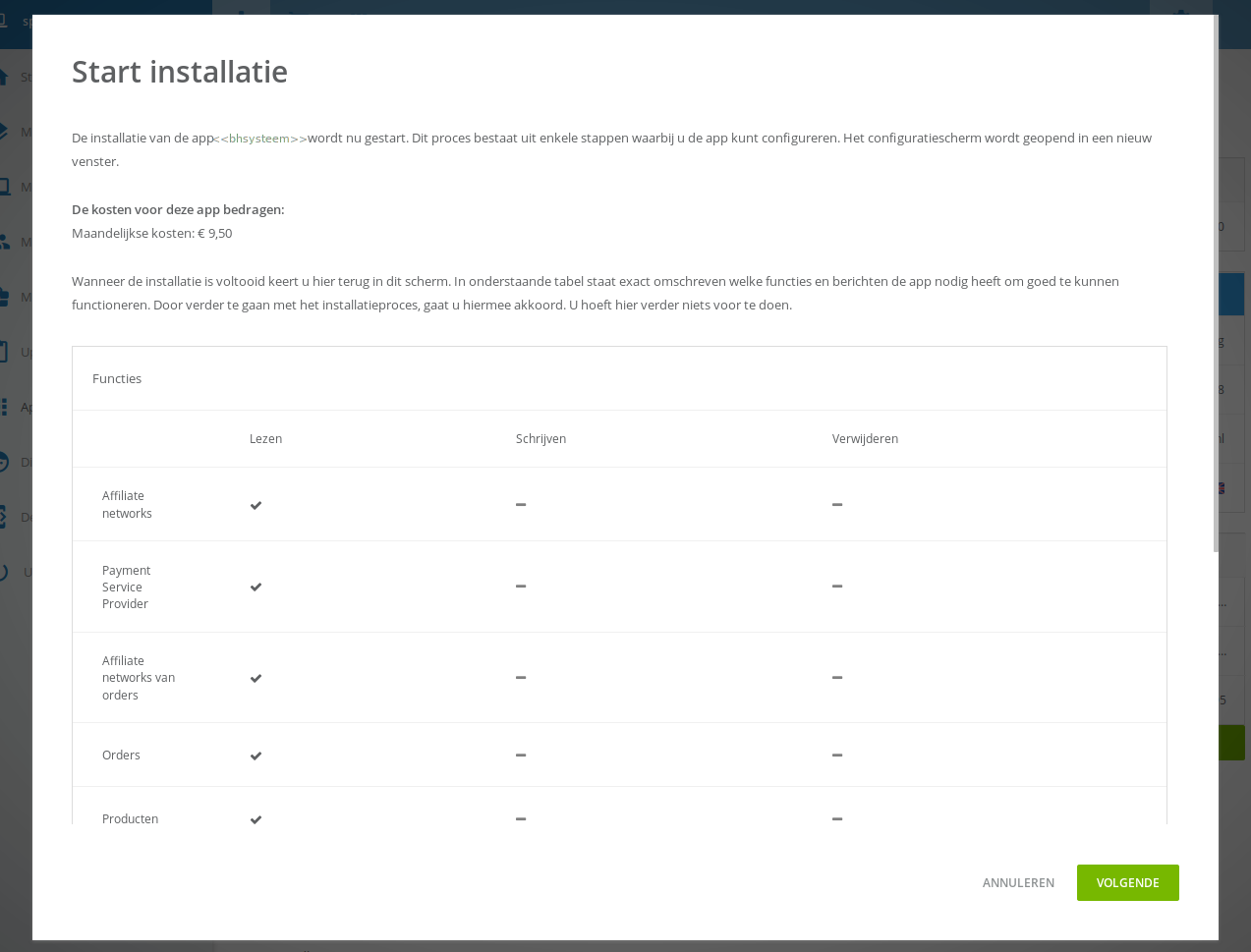
You install this integration from the CCV Shop App Store. If you select the Accounting category, our apps will appear automatically. You can recognize us as a provider by the blue gear icon. If you click on the App, you will see a description and the Install App button. During activation, you will be automatically guided through the configuration screens.
The installation is complete when both connection dots are green, and the settings in the Configuration tab have been entered and saved.
Important: Once the integration is installed, always log in to the dashboard via https://uwkoppeling.webwinkelfacturen.nl, and not from the app store.
The trial period for the integration runs until the first of the following month in which the integration was requested.
If you want to install another integration, you can do so in the same way. Make sure you are logged out of the integration dashboard and preferably start the new installation in an incognito browser.
If you want to terminate the integration, you can remove the app from the app store in your backend.
Are you switching to another accounting system and want to create a new integration? You can install the new app from the app store in your backend. Make sure you are logged out of the dashboard of the old integration and preferably start the new installation in an incognito browser.
Are you switching to another webshop system? Via our integrations page you can see whether you install it from the relevant app store, or by means of an installation link.
Has the installation been successful, but do you see in the dashboard of the integration the old license key still present when you click the dropdown arrow next to the key (even though that app/key has been deleted)? If so, please send us an email requesting that the old key be removed.
2.How the integration works
A order or invoice from the CCV Shop webshop is processed to an e-Boekhouden mutation or invoice. By default, the integration processes to mutations. The option invoices can be requested via webcare@webwinkelfacturen.nl.
Read more How the integration works .... Read less How the integration works ....
At the start of processing an order, we perform a number of checks on the CCV Shop order or invoice:
- It is checked whether the total of the CCV Shop order is equal to the sum of the amounts in the order lines plus the shipping cost amount.
- If the order is an ICP order, the VAT number is checked.
- It is checked whether a corresponding VAT code exists in e-Boekhouden for the VAT in each line.
- It is checked whether the order or invoice has not already been processed.
A payment for an order is only added if the order has been paid. For invoices, the payment is always processed, regardless of the status. A payment is only processed after the associated order / invoice has been processed first.
Processing a CCV Shop order or invoice to e-Boekhouden takes place in three steps:
- The integration first checks if the debtor is already present in the accounting system. If not, the integration creates the debtor in e-Boekhouden. For a new debtor, we must provide a Code field. This becomes the debtor number in e-Boekhouden. We use the same logic here as e-Boekhouden. Matching of debtors between CCV Shop and e-Boekhouden is based on email address.
- Products With the invoices option, the integration uses the SKU in the invoice lines. If this product is not present in e-Boekhouden, e-Boekhouden will reject the invoice or post it to a random product. Unfortunately, the integration cannot create new products in e-Boekhouden.
- The e-Boekhouden transaction (mutation, invoice) is created and processed.
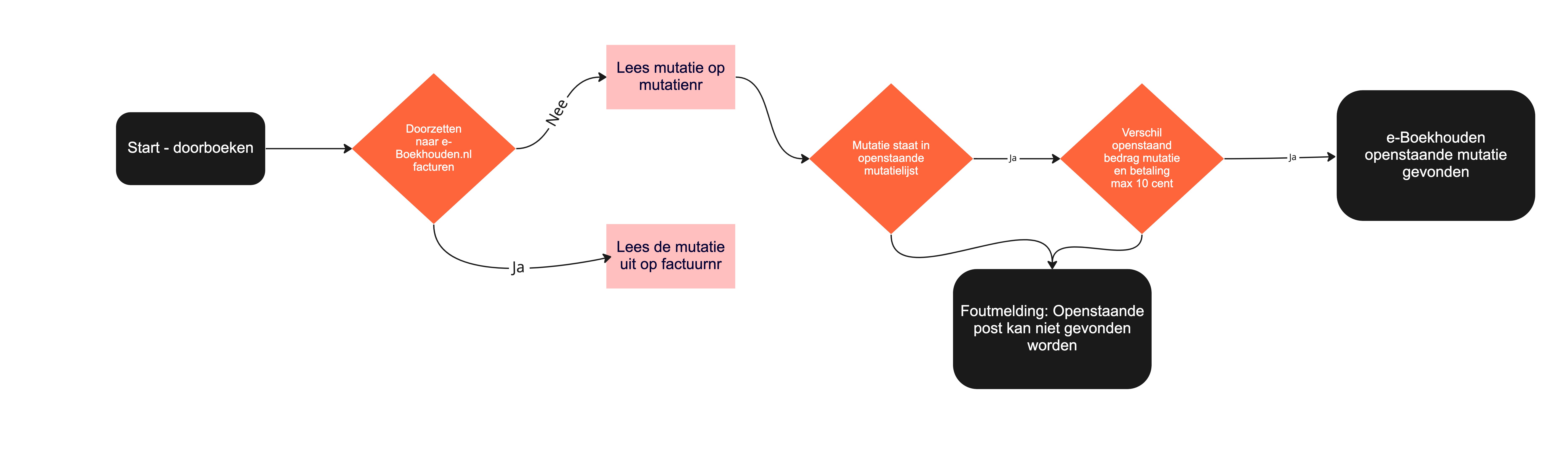
When processing payments, the integration retrieves the mutation from e-Boekhouden that was created based on the related sale. The integration checks if this mutation is still outstanding. If so, the integration creates the payment mutation.
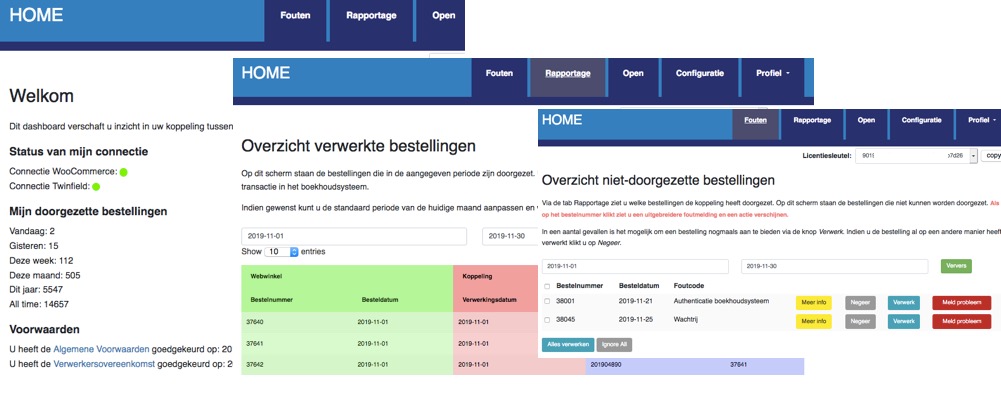
After the order or invoice has been forwarded and a success message from e-Boekhouden has been received, the order or invoice is marked as handled. The CCV Shop order appears at the Reporting tab on the dashboard.
If e-Boekhouden returns an error while processing the order or invoice, the order or invoice appears in the Errors tab on the dashboard. Via the yellow button More info more information about the problem can be found. Via the red button Report problem can the order or invoice with all necessary information easily be submitted to us after you have tried to resolve the problem yourself. If the problem is solved, in some cases the orders or invoices can be processed again with the blue Process button.
When forwarding the payment, the payment is also registered so that it cannot be processed again. Payments can also be reviewed via the dashboard.
Data
Information about the data that is processed can be found in the section Day-to-day: To e-Boekhouden later in the manual.
3.Required: e-Boekhouden codes
Registrations from March 14, 2025
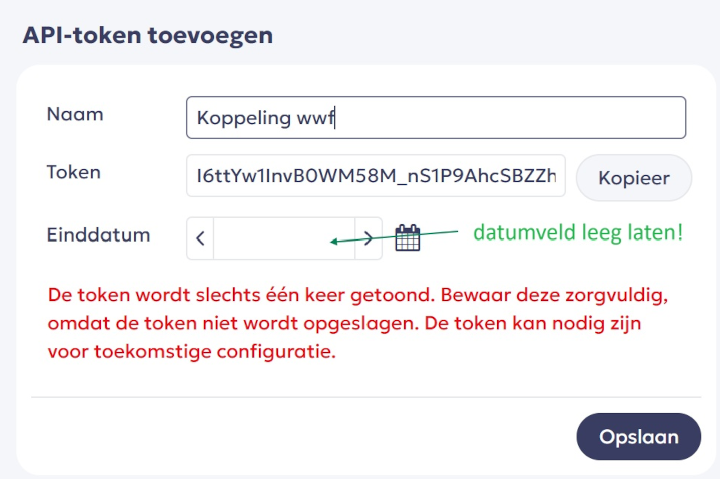
To establish the integration with e-Boekhouden, you need an API token. You can find this API token via Administration > Connections > API > e-Boekhouden API > Next. We recommend entering a clear name and an end date one year in the future. Please note that after this end date, you will need to re-establish the connection with the integration.
Registrations before March 14, 2025
To establish the integration with e-Boekhouden.nl, special codes are required. These are:
- username
- Security code 1
- Security code 2

4.Installation
You install the integration between CCV Shop and eboekhouden via the CCV Shop App Store. First, the connection with your webshop is established and you authorize the integration to read data from your webshop. Explanation is provided in the Install integration section in chapter 1.
Read more Installation ....Read less Installation ....
1. Establishing the connection with e-Boekhouden. This authorizes the integration to write transactions to your e-Boekhouden administration and to read information.
2. Configuring additional data, such as the VAT settings.
e-Boekhouden Authentication
The red dot and the red Connect button for e-Boekhouden on the Configuration screen indicate that the connection with e-Boekhouden is not yet valid. To activate the connection, click the red Connect button. You will then see a screen containing fields for a username and two security codes. Here, you enter the username and the two security codes you determined in the previous section.
For e-Boekhouden invoices, an invoice template must be provided. Unfortunately, the integration cannot retrieve the invoice templates in the e-Boekhouden administration. Therefore, the integration uses the name 'Invoice template' as default. If you want to use a different invoice template, you can enter the name of the template when clicking Edit.

When configuring the VAT rates and general ledger accounts, a link is created between the VAT rates in webshop and the VAT codes and revenue accounts in e-Boekhouden. You can always make changes by clicking the blue 'Edit' button and selecting an option from the drop-down menus.
Intra-Community (ICP) and international deliveries
The Intra-Community supplies / ICP option is intended for business-to-business deliveries within the EU. These sales are invoiced with 0% VAT. A VAT number from the customer is required. The International option applies to deliveries outside the EU. For these sales, the integration expects 0% VAT; otherwise, the sales cannot be processed. Separate VAT codes and general ledger accounts can be configured for both ICP and international deliveries.
OSS settings
If you are dealing with OSS - new regulations as of July 1, 2021 - it can be configured as follows.
If you use the NL VAT rates, the following remains applicable:
- in the column VAT Code the VAT code with the relevant percentage
- in the column revenue account a revenue account for the net revenue, the payment and shipping costs
- the VAT account column has no function in this case
If you calculate with VAT percentages of the country of delivery in the webshop, please fill in the following:
Per EU country, except NL
- in the column VAT code the VAT code VAT_OSS
- in the VAT account column, a Balance Sheet account for the VAT to be paid in the respective country
- in the column revenue account a revenue account for the net revenue, the payment and shipping costs
Only when using VAT code VAT_OSS, the entry will take place based on the configured VAT account in the Configuration. For other codes, the VAT account is determined in e-boekhouden based on the code.
Once the VAT settings have been configured and saved, you will always see the selected VAT rates. If you want to start over, you can use the grey 'Remove VAT settings' button. Your current settings will then be deleted and you can begin again.

You can create a link here between the payment methods in the webshop and a fixed debtor in your e-Boekhouden administration. Orders or invoices with a payment method from the list will then always be posted to this debtor. In that case, no new debtors will be created.
Note: It is not possible to set fixed debtors for ICP orders or invoices. For an ICP order or invoice, a valid VAT number must be transmitted. Therefore, a debtor will always be created in e-Boekhouden for an ICP order or invoice.
This option is only available when processing to Invoices.

When processing payments, a suspense account of type Payment Methods is configured in e-Boekhouden. When setting up the suspense accounts, there is no option to post to fixed debtors per payment method.

5.Day-to-day: From CCV Shop
Once an order or invoice has been processed, it cannot be processed again. An order or invoice that is modified in the webshop after it has been processed will not be adjusted in e-Boekhouden.
When processing payments, the integrations checks daily the CCV Shop orders or invoices that have been successfully processed to e-Boekhouden. If the order or invoice has a valid payment—a transaction with the success status—then that payment will also be processed to e-Boekhouden. Checking CCV Shop orders or invoices is performed six times per day.
Field-level specification orders
| Below is an elaboration at field level when retrieving orders. The general values in the order and the order rules are discussed, the shipping costs, the debtor details and the payments. | ||
| Name field | Values from CCV Shop order | |
| Order-identifier | [id] | |
| Order number and reference | [ordernumber_full] | |
| Order and booking date | [create_date] | |
| ICP indication | [is_intra_community_order] | |
| International indication |
An order is an international order if:
|
|
| Valuta | [currency] | |
| Payment status | [paid] | |
| Payment method |
The payment method is determined as follows based on the field [paymethod]:
|
|
| Paymentmethod-id | [paymethod_id] | |
| Total amounts incl or excl VAT | The amounts in the order can be incl. or excl. VAT. This is determined by the field [taxes_included]. This value is important for determining the Total incl and the Total excl, see below. | |
| Total incl | The amount incl. VAT of the order is:
|
|
| Total excl | The amount excl. VAT of the order is:
|
|
| Total VAT | [total_tax] | |
| Total discounts incl or excl VAT | The amounts in the order can be incl. or excl. VAT. This is determined by the field [order_row_taxes_included] | |
| Total discounts incl. | The amounts are calculated depending on the field [order_row_taxes_included]. This value is important for determining Total discounts incl. and the Total discounts excl., see below.
|
|
| Total discounts excl. | The amounts are calculated depending on the field [order_row_taxes_included]:
|
|
| Name field | Values from CCV Shop order |
| VAT percentage | [tax], if the amount < 1 is dan wordt het percentage vermenigvuldigd met 100 |
| Name product | [product_name] |
| Productcode | If filled [sub_product_number], otherwise [product_number] |
| Amount | [count] |
| Discount | ([price_without_discount] - [selling_price]) * [count] |
| Amounts incl. or excl. VAT | The amounts in the order lines can be incl. or excl. VAT. This is determined by the field [order_row_taxes_included]. This value is important for determining the unit prices incl. and the unit prices excl., see below |
| Unit price excl. VAT | The unit price excl. VAT is:
|
| Unit price incl. VAT | The unit price incl. VAT is:
|
| Line prices incl and excl discount | These are calculated from the discount and the unit prices. The unit prices are multiplied by the quantity. |
| Accounts and VAT codes from e-Boekhouden | These are determined based on the settings in the integration, the delivery country of the order and the VAT percentages. The type for order lines is turnover / revenue. |
| Name field | Values from CCV Shop order |
| Name | Shipping costs |
| VAT percentage | For ICP and international orders 0%, otherwise [shipping_tax_percentage] |
| Shipping costs incl. or excl. VAT | The shipping costs are given incl. or excl. VAT. This is determined by the field [order_row_taxes_included]. This value is important for determining the shipping costs incl. and excl. VAT, see below |
| Shipping costs excl VAT | Shipping costs excl. VAT are:
|
| Shipping costs incl VAT | Shipping costs incl. VAT are:
|
| Accounts and VAT codes from e-Boekhouden | These are determined based on the settings in the integration, the delivery country of the order and the VAT percentages. The type for shipping costs is shipping / shipping costs. |
| Name field | Values from CCV Shop order |
| Name | Payment costs |
| VAT percentage | For orders For ICP and international orders and a margin sale 0%, otherwise the highest percentage for the delivery country.
For invoices The VAT percentage on the shipping costs is used, because there is no VAT percentage on the payment costs. For example, 21% may be used for the Netherlands, 19% for Germany, and 20% for France. |
| Payment costs incl and excl VAT | Sum of the amounts in [paymethod_costs] and [extra_payment_option_price]. Just like for calculating the amounts in the order lines and for the shipping costs, the field [order_row_taxes_included] is used for the payment costs incl. and excl. VAT |
| Accounts and VAT codes from e-Boekhouden | These are determined based on the settings in the integration, the delivery country of the order and the VAT percentages. The type for payment costs is payment / payment costs. |
|
There are two types of surcharges retrieved from the order. The surcharge with field name [extra_costs] and the surcharge with field name [credit_point_discount]. This results in a maximum of 2 surcharge lines. |
|
| Name field | Values from CCV Shop order |
| Name | Extra [extra_costs_description] or Surcharge |
| VAT percentage | For ICP and international orders 0%, in all other cases the highest VAT percentage in the order lines is used. |
| Surcharge amounts incl. and excl. VAT | Amounts in [extra_costs] and [credit_point_discount]. Just like for calculating the amounts in the order lines and for the shipping costs, the field [order_row_taxes_included] used for the surcharges incl. and excl. VAT |
| Accounts and VAT codes from e-Boekhouden | These are determined based on the settings in the integration, the delivery country of the order and the VAT percentages. The type for order lines is turnover / revenue. |
| Is only filled for paid orders | |
| Name field | Values from CCV Shop order |
| Order-identifier | [id] |
| Payment identifier | [order_number] |
| Payment method identifier | [paymenthod_id] |
| Payment method | [paymethod] |
| Payment date | [create_date] |
| Amount | [total_price] |
| Status | paid |
| Transaction-id | [transaction_id] |
| Name field | Values from CCV Shop order |
| First name | [billingaddress][first_name] |
| Last name | [billingaddress][last_name] |
| First name | [billingaddress][first_name] |
| Company name | [billingaddress][company] |
| Phone number | [billingaddress][telephone] |
| Chamber of Commerce number | [billingaddress][kvk] |
| Address line 1 | [billingaddress][street] |
| Address line 2 | [billingaddress][address_line_2] |
| House number | [billingaddress][housenumber] [billingaddress][housenumber_suffix] |
| Zip code | [billingaddress][zipcode] |
| City | [billingaddress][city] |
| Country | [billingaddress][country_code] |
| Shipping address | Same as for the billing address, but now with [deliveryaddress] instead of [billingaddress] |
| VAT number | [vatnumber] - this is checked for correctness |
| Emailaddress | [email] |
Field-level specification invoices
| Below is an elaboration at field level for retrieving invoices. Please note, a credit invoice is also an invoice and will be retrieved in the same way as debit invoices. | |
| Name field | Values from CCV Shop order |
| Invoice-identifier | [id] |
| Invoice number and reference | [invoicenumber_full] |
| Order-identifier | This is determined based on the URL in the field [order] |
| Invoice and entry date | [create_date] |
| ICP indication | [is_intra_community_order] |
| International indication |
An order is an international order if:
|
| Valuta | [currency] |
| Payment method |
The payment method is determined as follows based on the field [paymethod]:
|
| Paymentmethod-id | [paymethod_id] |
| Total amounts incl or excl VAT | The amounts in the order can be incl. or excl. VAT. This is determined by the field [taxes_included]. This value is important for determining the Total incl and the Total excl, see below. |
| Total incl | The amount incl. VAT of the order is:
|
| Total excl | The amount excl. VAT of the order is:
|
| Total VAT | [total_tax] |
| Total discounts incl or excl VAT | The amounts in the order can be incl. or excl. VAT. This is determined by the field [order_row_taxes_included] |
| Name field | Values from CCV Shop order |
| VAT percentage | [tax], if the amount < 1 is dan wordt het percentage vermenigvuldigd met 100 |
| Name product | [product_name] |
| Productcode | If filled [sub_product_number], otherwise [product_number] |
| Amount | [count] |
| Discount | ([price_without_discount_with_attributes] - [price_without_discount_with_attributes]) * [count] |
| Amounts incl. or excl. VAT | The amounts in the invoice lines can be incl. or excl. VAT. This is determined by the field [invoice_row_taxes_included]. This value is important for determining the unit prices incl. and the unit prices excl., see below |
| Unit price excl. VAT | The unit price excl. VAT is:
|
| Unit price incl. VAT | The unit price incl. VAT is:
|
| Line prices incl and excl discount | These are calculated from the discount and the unit prices. The unit prices are multiplied by the quantity. |
| The shipping costs are added as a separate invoice line | The amounts are determined based on [total_shipping], [shipping_tax_percentage] and [invoice_row_taxes_included] as in other lines. This line is only added for an amount other than 0. |
| The payment costs are added as a separate invoice line | The amounts are determined based on [paymethod_costs], [extra_payment_option_price] and [invoice_row_taxes_included] as in other lines. This line is only added for an amount other than 0. |
| The surcharges are added as separate lines to the invoice | The amounts are determined based on [extra_costs], [credit_point_discount], [invoice_row_taxes_included] as in other lines. The amount is only added for an amount other than 0. This leads to a maximum of 2 extra lines. |
| Accounts and VAT codes from e-Boekhouden | These are determined based on the settings in the integration, the delivery country of the invoice and the VAT percentages. The type for invoice lines is turnover / revenue, for the shipping costs line shipping / shipping costs and payment costs payment / payment costs. |
| Name field | Values from CCV Shop order |
| For invoices, payments are always determined, whether the invoice is paid or not. This is different from retrieving orders. For orders, the payment is only retrieved if the status of the order is paid. | |
| Order-identifier | [id] |
| Payment identifier | [order_number] |
| Payment method identifier | [paymenthod_id] |
| Payment method | [paymethod] |
| Payment date | [create_date] |
| Amount | [total_price] |
| Status | paid |
| Transaction-id | [transaction_id] if filled, otherwise [invoice_number] |
6.Day-to-day: To e-Boekhouden
Creating invoices / sales transactions
The orders or invoices from CCV Shop are imported into e-Boekhouden as mutations or invoices. For each order or invoice, the VAT and ledger account are provided as configured during the installation of the integration.
When creating an OSS invoice or mutation in e-Boekhouden, for each line in the CCV Shop order or invoice two lines appear in the e-Boekhouden mutation / invoice. The first line in the e-Boekhouden mutation / invoice contains the amount excl VAT and the second line the VAT amount. The first line is posted to a revenue account, the second line to a VAT account. The revenue and VAT accounts can be configured via the Configuration tab of the dashboard.
When creating invoices or mutations, descriptions and invoice numbers can be adjusted. Below are the options for creating invoices and mutations in e-Boekhouden. When creating invoices, new debtors may be added to e-Boekhouden.
Please note: When creating mutations, the integration provides a sales number. If a mutation with that number already exists, the existing mutation will be overwritten. Therefore, always ensure that sales numbers are unique, especially if you have multiple integrations feeding into a single e-Boekhouden account.
If your integration was installed after March 14, 2025, and the integration processes to Invoices, these are invoices without a corresponding mutation. We can change this to Invoices with a corresponding mutation. In that case, the invoice can no longer be modified in e-Boekhouden.
Creating new debtors
When creating a mutation or invoice in e-Boekhouden, the code of the relation in e-Boekhouden is used. The integration first checks if the debtor is already present in e-Boekhouden. If so, the integration will use the relation code of this existing e-Boekhouden debtor. If not, the integration creates the debtor in e-Boekhouden.
The integration creates a RelationCode for the new e-Boekhouden debtor. The procedure is the same as if you were to create the mutation or invoice in e-Boekhouden yourself. The method performed by the integration is:
1. Determine the company name and the name of the debtor. For the debtor's name, the first name is appended to the last name.
2. Determine whether the company name or personal name of the debtor is used as the base name. If the company name is present, this becomes the base name. Otherwise, the first plus last name.
3. Take at most the first 10 characters of the base name
4. Determine if the base name occurs more than once in e-Boekhouden. If so, it will have one or more sequence numbers. Determine the first available sequence number and append this to the base name.
Example: If the company name is empty and the name is Klaartje Pietersen, the base name becomes KlaartjePietersen. We take the first 10 characters of this. This results in KlaartjePi. If this already occurs 5 times and the highest is KlaartjePi4, the debtor code becomes KlaartjePi5.
Matching between and e-Boekhouden for debtors is based on the email address.
Please note: The integration will never modify debtors in e-Boekhouden. The email address field is used for matching debtors. For integrations started before October 28, 2023, that process to e-Boekhouden mutations, we provide the debtor data within the mutation, and e-Boekhouden determines the debtor code itself.
Creating payment transactions
Payments from CCV Shop are imported into e-Boekhouden as mutations. For each payment, the financial account is provided as configured in the integration settings. If you want to change this account, you can easily do so via the Configuration tab of the dashboard.
To process a payment, the integration attempts to find the corresponding item in e-Boekhouden.
Since the sale has also been processed under the same key, the integration will attempt to find the mutation for the processed sale.
Processing without outstanding item
It is possible to process payments for which there is no outstanding item to e-Boekhouden. To do this, we need to adjust a contract setting. It is certainly not the best method, so we advise using this sparingly or not at all. Please note: There are two things to keep in mind when processing payments to e-Boekhouden:
- There is a technical limit to the number of outstanding items the integration can retrieve. We cannot say exactly where that limit lies, but a few hundred outstanding items is very many.
- e-Boekhouden has its own reconciliation option. This means that if payments come in through the bank book, for example, and the debtor and order number match, e-Boekhouden automatically matches that payment to the sales mutation. e-Boekhouden does not take the outstanding amount into account because there may also be partial payments. Always ensure that the order numbers of the mutations are unique.
Specification field level creating e-Boekhouden

| Name | Example | Note |
| Invoice number | 3908 | This is optional; we recommend letting e-Boekhouden determine the invoice numbers itself. Then they are guaranteed to be unique and sequential. If you still want to provide the invoice number, the CCV Shop order number or invoice number can be used for this. |
| Relation code | 2023031416200123 | The RelationCode of the debtor in e-Boekhouden. It is possible that the debtor was added to e-Boekhouden by the integration in a previous step. |
| Date | 2023-01-11 | Order date |
| Payment term | 14 | A default payment term can be set for invoices |
| Accounting mutation description | ORD145 - mollie | Order number - payment method (if present) |
| DirectDebit | false | Cannot be adjusted |
| Invoice template | Invoice template | The name of the invoice profile, default Invoice template. If you cannot set the invoice profile in the Configuration tab, you can provide the name to us, and we will set it. |
| Products | The article codes of the products in e-Boekhouden. It is possible that the integration created products in e-Boekhouden for this in a previous step. | |
| PostInAccounting | true | Cannot be adjusted |
| Lines | ||
| Amount | 1 | |
| Code | 6940478067395 | Product code in e-Boekhouden |
| Description | 2-week extension | The description in the line |
| PricePerUnit | 8.22 | Unit price excl. VAT |
| VATCode | HIGH_SALES_21 | As configured via the dashboard |
| OffsetAccountCode | 8000 | As configured via the dashboard |
| CostCenterID | 0 | This is never provided |

| Name | Example | Note |
| TYPE | 2 | Invoice payment received, this cannot be adjusted. |
| ACCOUNT | 1300 |
Usually 1300, but can be adjusted on request. Account configured for the payment method - this is a financial account in e-Boekhouden. |
| DESCRIPTION | ORD235 | Payment payment method - sales number in payment. |
| INVOICE | ORD235 | sales number in payment |
| PAYMENT REFERENCE | ORD235 | order number or invoice number |
| DATE | 01-01-2023 | |
| INEX | EX | |
| RelationCode | Debtor from the Open Items list at the sales mutation | |
| Lines | ||
| AMOUNTEXCL | 99.09 | Amount ex VAT |
| AMOUNTINCL | 119.90 | Amount incl. VAT |
| VATAMOUNT | 20.81 | VAT amount |
| VATPERC | HIGH_SALES_21 | As set on the dashboard |
| OFFSET ACCOUNT | 8000 | As set on the dashboard |
| Name | Example | Note |
| MutationNo | Empty | e-Boekhouden determines this number automatically. This cannot be adjusted. |
| Type | InvoicePaymentReceived | This cannot be adjusted. |
| Relation code | Relation debtor in e-Boekhouden | |
| Date | 2023-10-02 | Sales date |
| Description | iDEAL - 123 - trx_qwer | Payment method - mutation number - transaction_id |
| Invoice number | 90282 | Invoice number |
| Entry document | tr_qwer | transaction ID payment |
| Payment term | 14 | Not editable |
| InExVAT | IN | Not editable |
| Line |
|
7.Support
Read more Support .... Read less Support ....
Explanation tabs dashboard
On the Dashboard >> Report you can see which orders or invoices from your CCV Shop webshop, and when, have been transferred to e-Boekhouden.What if orders or invoices are missing in e-Boekhouden
If orders or invoices are missing in e-Boekhouden we recommend following the steps below:- Log in to the dashboard: https://uwkoppeling.webwinkelfacturen.nl. The username and password are included in the registration email.
- Go to the Errors tab and check if order or invoice is there. You may need to adjust the search period if the
order or invoice is from a previous month. If you find order or invoice in this overview:
- Check the error code and verify whether you can resolve it yourself.
- If yes resolve the issue and click the blue Process button to resubmit the order or invoice.
- If not use the red Report problem button to create a ticket with us.
- Note if there are multiple errors, please create only 1 or 2 tickets. We will automatically see the other issues.
- Go to the Report tab and see if order or invoice is listed there. If so, you'll often see an identifier for e-Boekhouden (in the purple section of the overview) that you can use to search for order or invoice.
- Go to the Open tab and check if order or invoice is there.
- If you cannot resolve the issue, you can always create a ticket via the green Ask us button.