1.Introduction
This is the manual for the integration between Lightspeed eCom and Silvasoft.
- This integration is a financial integration. It is not a logistics integration. It is not suitable for updating customers in Silvasoft, printing packing slips, or synchronizing products/inventory.
- This integration does not replace the work of an accountant. It saves time because you no longer have to retype documents. The accountant is still needed for advice, expertise, and control.
Tip: Other customers using this integration found the tips in the FAQ for Lightspeed eCom and in the FAQ for Silvasoft.
You install this integration from the Lightspeed eCom App Store. If you select the Accounting category, our apps will appear automatically. You can recognize us as a supplier by the blue area and the white gear icon at the top right. If you click on the App, you will see a description and the Install button. Upon activation, you will be automatically guided through the configuration screens.
The installation is complete when both connection dots are green, and the settings in the Configuration tab have been entered and saved.
Important: Once the integration is installed, always log in to the dashboard via https://uwkoppeling.webwinkelfacturen.nl, and not from the app store.
The trial period for the integration is 30 days.
If you want to install another integration, you can do so in the same way. Make sure you are logged out of the integration dashboard and preferably start the new installation in an incognito browser.
If you want to terminate the integration, you can simply remove the app from the app store in your backend.
Are you switching to another accounting system and want to create a new integration? You can install the new app from the app store in your backend. Make sure you are logged out of the dashboard of the old integration and preferably start the new installation in an incognito browser.
Are you switching to another webshop system? Via our integrations page you can see whether you install it from the relevant app store, or by means of an installation link.
Has the installation been successful, but do you see in the dashboard of the integration the old license key still present when you click the dropdown arrow next to the key (even though that app/key has been deleted)? If so, please send us an email requesting that the old key be removed.
2.How the integration works
The integration works with webhooks from the Lightspeed eCom webshop. Processing can be done in two ways, namely based on paid orders or invoices. The advantage of the option paid orders is that orders that are not paid do not enter the accounting system. With this option, however, credit notes are not included. With the option invoices all invoices are processed to Silvasoft, so both debit and credit invoices. You can set the preference for paid orders or invoices via the Configuration tab of the dashboard.
Read more How the integration works .... Read less How the integration works ....
At the start of processing an order, we perform a number of checks on the Lightspeed eCom order or invoice:
- It is checked whether the total of the Lightspeed eCom order / invoice is equal to the sum of the amounts in the order / invoice lines plus the shipping costs amount.
- If the order / invoice is an ICP sale, the VAT number is checked.
- It is checked whether a corresponding VAT code exists in Silvasoft for the VAT in each line.
- It is checked whether the order or invoice has not already been processed.
Processing orders or invoices
Processing a Lightspeed eCom order or invoice to Silvasoft takes place in three steps:
- It is checked if the customer already exists in Silvasoft. If not, the customer is created. Matching is based on the email address.
- It is checked whether the products from the Lightspeed eCom order or invoice are already present in Silvasoft. Missing products are created.
- The Silvasoft invoice or order is created and processed.
After the order or invoice has been forwarded and a success message from Silvasoft has been received, the order or invoice is marked as handled. The Lightspeed eCom order appears at the Reporting tab on the dashboard.
If Silvasoft returns an error while processing the order or invoice, the order or invoice appears in the Errors tab on the dashboard. Via the yellow button More info more information about the problem can be found. Via the red button Report problem can the order or invoice with all necessary information easily be submitted to us after you have tried to resolve the problem yourself. If the problem is solved, in some cases the orders or invoices can be processed again with the blue Process button.
Data
Information about the data that is processed can be found in the section Day-to-day: To Silvasoft later in the manual.
3.Required: Silvasoft key
To establish the connection with your Silvasoft account, you need to create an API key. An API key is a secret key that authorizes the connection to read from your Silvasoft account and, for example, add debtors and orders to your account. Essentially, an API key is a special password for the connection.
Silvasoft has a good explanation of how to generate the API key, including the associated costs. You can find it here: https://www.silvasoft.nl/artikel/hoe-api-activeren-silvasoft-gebruiker/. The contract you need depends on the number of orders in your store or webshop. You can start with a low contract and upgrade if you encounter problems. Sales that are not processed due to limits appear in the integration dashboard, in the error queue. You can simply process them afterwards, so you won't lose anything should the API limits be too low.
4.Installation
The integration between Lightspeed eCom and silvasoft is installed via the Lightspeed App Store. First, the connection with your webshop is established and you authorize the integration to read data from your webshop.
Read more Installation .... Read less Installation ....
Two more steps need to be completed:
1. Establishing the connection with Silvasoft. This authorizes the integration to write transactions to your Silvasoft administration and to read information.
2. The configuration itself.
Silvasoft connection
You establish the connection with Silvasoft via the username and API key you determined in the previous step. Click the red Connect button next to Silvasoft. You can now enter the username and the API key in the popup window.

When configuring the VAT rates and general ledger accounts, a link is created between the VAT rates in webshop and the VAT codes and revenue accounts in Silvasoft. You can always make changes by clicking the blue 'Edit' button and selecting an option from the drop-down menus.
By default, the integration shows a fixed list of VAT rates per EU country. You can configure this fixed list. If you provide OSS, you can easily adjust the list with the correct VAT percentage per country. If you prefer to use the VAT rates from your webshop, you can adjust this in the contract settings. Intra-Community (ICP) and international deliveries
The Intra-Community supplies / ICP option is intended for business-to-business deliveries within the EU. These sales are invoiced with 0% VAT. A VAT number from the customer is required. The International option applies to deliveries outside the EU. For these sales, the integration expects 0% VAT; otherwise, the sales cannot be processed. Separate VAT codes and general ledger accounts can be configured for both ICP and international deliveries.
Once the VAT settings have been configured and saved, you will always see the selected VAT rates. If you want to start over, you can use the grey 'Remove VAT settings' button. Your current settings will then be deleted and you can begin again.

You can create a link here between the payment methods in the webshop and a fixed debtor in your Silvasoft administration. Orders or invoices with a payment method from the list will then always be posted to this debtor. In that case, no new debtors will be created.
Note: It is not possible to set fixed debtors for ICP orders or invoices. For an ICP order or invoice, a valid VAT number must be transmitted. Therefore, a debtor will always be created in Silvasoft for an ICP order or invoice.

5.Day-to-day: From Lightspeed
VAT numbers: For business orders within the EU, outside the Netherlands, a VAT number is mandatory. The integration performs a check on the validity of VAT numbers.
Field-level specification orders
| Below is an elaboration at field level when retrieving orders. The general values in the order and the order rules are discussed, the shipping costs and the debtor details. | |
| Name field | Values from Lightspeed eCom order |
| Order-identifier | [id] |
| Order number | [ordernumber_full] |
| Affiliate number | This must be requested separately by the merchant. The field [comment] is used for this. |
| Customer number | [customer][resource][id], this is not used |
| Order and booking date | [createdAt] |
| ICP indication |
An order is an ICP order if:
|
| International indication |
An order is an international order if:
|
| Order status | [status] |
| Payment status | [paymentStatus] |
| Payment method | [paymentTitle] |
| Paymentmethod-id | [paymentId] |
| Total amounts excl VAT | [priceExcl] |
| Total amounts incl VAT | [priceIncl] |
| Total VAT | Total incl - Total excl |
| Total discounts incl or excl VAT | The amounts in the order can be incl. or excl. VAT. This is determined by the field [order_row_taxes_included] |
| Total discounts | 0 |
| Name field | Values from Lightspeed eCom order |
| VAT percentage | [taxRate] * 100 |
| Name product | The name of the product is determined as follows
|
| SKU | [sku] |
| Ean | [ean] |
| Productcode | [articleCode] |
| Amount | [quantityOrdered] |
| Discount excl / incl VAT | [discountExcl] / [discountIncl] |
| Line amounts incl or excl VAT without discount | [basePriceExcl] / [basePriceIncl] * quantity |
| Line amounts incl or excl VAT with discount | [priceExcl] / [priceIncl] |
| Unit amounts incl or excl VAT without discount | [basePriceExcl] / [basePriceIncl] |
| Unit amounts incl or excl VAT with discount | [priceExcl] / [priceIncl] divide by the quantity |
| Accounts and VAT codes from Silvasoft | These are determined based on the settings in the integration, the delivery country of the order and the VAT percentages. The type for order lines is turnover / revenue. |
| Name field | Values from Lightspeed eCom order |
| Name | Shipping costs [shipmentTitle] |
| VAT percentage | [shopmentTaxRate] * 100 |
| Shipping costs incl or excl VAT without discount | [shipmentBasePriceExcl] / [shipmentBasePriceIncl] |
| Discount Shipping costs incl or excl VAT | [shipmentDiscountExcl] / [shipmentDiscountIncl] |
| Shipping costs incl or excl VAT with discount | [shipmentBasePriceExcl] / [shipmentBasePriceIncl] minus [shipmentDiscountExcl] / [shipmentDiscountIncl] |
| Accounts and VAT codes from Silvasoft | These are determined based on the settings in the integration, the delivery country of the order and the VAT percentages. The type for shipping costs is shipping / shipping costs. |
| Name field | Values from Lightspeed eCom order |
| Name | Payment costs [paymentTitle] |
| VAT percentage | [paymentTaxRate] |
| Payment costs incl and excl VAT | [paymentBasePriceExcl] / [paymentBasePriceIncl] |
| Accounts and VAT codes from Silvasoft | These are determined based on the settings in the integration, the delivery country of the order and the VAT percentages. The type for payment costs is payment / payment costs. |
| Name field | Values from Lightspeed eCom order |
| First name | [first_name] |
| Last name | [last_name] |
| Company name | [companyName] |
| Phone number | [phone] |
| Chamber of Commerce number | [companyCoCnumber], a clean-up action takes place here |
| Address line 1 | [addressBillingStreet] [addressBillingNumber] [addressBillingExtension] |
| Address line 2 | [addressBillingStreet2] |
| Zip code | [addressBillingZipcode] |
| City | [addressBillingCity] |
| Country | [addressBillingCountry][code], and the name is determined based on that code |
| Iso country | [addressBillingCountry][code] |
| Shipping address | Same as for the billing address, but now with [addressShipping] instead of [addressBilling] |
| VAT number | [companyVatNumber] - this is checked for correctness |
| Emailaddress | [email] |
Field-level specification invoices
| Below is a specification at field level for retrieving invoices. The debtors from the invoice are read in the same way as for orders. The fields are listed above. | |
| Name field | Values from Lightspeed eCom invoice |
| Invoice-identifier | [id] |
| Invoice number | [number] |
| Order-identifier | [id] of the order associated with the invoice |
| Affiliate number | This must be requested separately by the merchant. The field [comment] is used for this. |
| Invoice date | [createdAt] |
| ICP indication |
An order is an ICP order if:
|
| International indication |
An order is an international order if:
|
| Payment status | [paymentStatus] |
| Payment method | [paymentTitle] |
| Paymentmethod-id | [paymethodId] |
| Total amounts incl or excl VAT | [priceIncl] and [priceExcl] |
| Total VAT | [priceIncl] - [priceExcl] |
| Similar to retrieving customer data from the order, see above. |
| The invoice lines in the Lightspeed invoice have a type. The lines with type equal to product or custom are designated as invoice lines. These invoice lines are processed one by one. | |
| Name field | Values from the Lightspeed eCom invoice line |
| VAT percentage | [taxRate] * 100 |
| Name product | The name of the product is determined as follows
|
| SKU | [sku] |
| Ean | [ean] |
| Productcode | [articleCode] |
| Amount | [quantity] |
| Discount excl / incl VAT | [discountExcl] / [discountIncl] |
| Line amounts incl or excl VAT without discount | [basePiceExcl] / [basePriceIncl] * [quantity] |
| Line amounts incl or excl VAT with discount | [priceExcl] / [priceIncl] |
| Unit amounts incl or excl VAT without discount | [basePriceExcl] / [basePriceIncl] |
| Unit amounts incl or excl VAT with discount | [priceExcl] / [priceIncl] divide by [quantity] |
| Accounts and VAT codes from Silvasoft | These are determined based on the settings in the integration, the delivery country of the invoice and the VAT percentages. The type for invoice lines is turnover / revenue. |
| The invoice lines in the Lightspeed invoice have a type. The lines with type equal to shipment. The integration expects a maximum of 1 shipping line. | |
| Name field | Values from the Lightspeed eCom shipping line |
| VAT percentage | [taxRate] * 100. If the VAT percentage is 0, it is checked whether the VAT percentage can be determined from [basePriceIncl] and [basePriceExcl] |
| Name | Shipping costs [variant] |
| Amount | 1 |
| Discount excl / incl VAT | [discountExcl] / [discountIncl] |
| Line amounts incl or excl VAT without discount | [basePiceExcl] / [basePriceIncl] |
| Line amounts incl or excl VAT with discount | [priceExcl] / [priceIncl] |
| Unit amounts incl or excl VAT without discount | [basePriceExcl] / [basePriceIncl] |
| Unit amounts incl or excl VAT with discount | [priceExcl] / [priceIncl] |
| Accounts and VAT codes from Silvasoft | These are determined based on the settings in the integration, the delivery country of the invoice and the VAT percentages. The type for shipping lines is shipment / shipping costs. |
| The invoice lines in the Lightspeed invoice have a type. The lines with type equal to payment. The integration expects a maximum of 1 payment line. | |
| Name field | Values from the Lightspeed eCom payment line |
| VAT percentage | [taxRate] * 100. If the VAT percentage is 0, it is checked whether the VAT percentage can be determined from [basePriceIncl] and [basePriceExcl] |
| Name | Payment costs [variant] |
| Amount | 1 |
| Discount excl / incl VAT | [discountExcl] / [discountIncl] |
| Line amounts incl or excl VAT without discount | [basePiceExcl] / [basePriceIncl] |
| Line amounts incl or excl VAT with discount | [priceExcl] / [priceIncl] |
| Unit amounts incl or excl VAT without discount | [basePriceExcl] / [basePriceIncl] |
| Unit amounts incl or excl VAT with discount | [priceExcl] / [priceIncl] |
| Accounts and VAT codes from Silvasoft | These are determined based on the settings in the integration, the delivery country of the invoice and the VAT percentages. The type for payment lines is payment / payment costs. |
6.Day-to-day: To Silvasoft
The orders or invoices from Lightspeed eCom are imported into Silvasoft as invoices or orders.
This data is processed to Silvasoft:
When processing customer information, it is first checked whether the customer has been processed before. If so, this Silvasoft debtor is used as the debtor for the Silvasoft transaction. If the customer is not yet known, they are added to Silvasoft. Matching is based on email address. Please note: The integration only creates debtors. The integration does not modify debtors.
Products not yet in Silvasoft are added to Silvasoft. They are added with a price excl. VAT and the VAT percentage as indicated in the order. New products are placed in the category Webshop in Silvasoft.
Please note: The products are only created in Silvasoft. Products in Silvasoft are never modified.
The rules for matching products between Lightspeed eCom and Silvasoft can be found in this FAQ be read.
Automatically processing payments
The integration is not suitable for forwarding payments to Silvasoft
The integration cannot have the invoices created in Silvasoft automatically sent by Silvasoft.
Field-level specification Silvasoft

| Name | Example | Note |
| CustomerNumber | 4765 | Default debtor id. |
| AddAsDraft | false | This cannot be adjusted |
| InvoiceReference | 3894029204 |
For orders: order number, on request invoice number For invoices: invoice number, on request order number |
| InvoiceDate | 09-03-2023 |
For orders: order date For invoices: invoice date |
| InvoiceNotes | ||
| Invoice_InvoiceLine | ||
| ProductNumber | 0293498320939 | SKU product, Shipping costs, Payment costs, Discount or Surcharge. |
| Quantity | 1 | Amount |
| TaxPc | 21 | VAT percentage |
| UnitPriceExclTax | 24.75 | Unit price excl. VAT |
| SubTotalInclTax | 29.95 | Line price incl. VAT |
| Description | Fireplace Bio-ethanol gel | Description |
| TaxCode | 21.0% - VAT high Netherlands | VAT code |
| LedgerAccountNumber | 8159 | Revenue account |
| Invoice_Address | ||
| Address_Street | Stationstraat | street |
| Address_City | Amsterdam | city |
| Address_PostalCode | 1000AA | zipcode |
| Address_Unit | 12 | house number |
| Address_Type | InvoiceAddress | Can have InvoiceAddress or ShippingAddress as value. |
| Name | Example | Note |
| CustomerNumber | 4765 | Default debtor id. |
| OrderReference | 3894029204 | order number, on request invoice number. |
| OrderDate | 09-03-2023 | Order date |
| OrderNotes | ||
| order_orderline | ||
| ProductNumber | 0293498320939 | SKU product, Shipping costs, Payment costs, Discount or Surcharge. |
| Quantity | 1 | Amount |
| TaxPc | 21 | VAT percentage |
| UnitPriceExclTax | 24.75 | Unit price excl. VAT |
| SubTotalInclTax | 29.95 | Line price incl. VAT |
| Description | Fireplace Bio-ethanol gel | Description |
| TaxCode | 21.0% - VAT high Netherlands | VAT code |
| LedgerAccountNumber | 8159 | Revenue account |
| Invoice_Address | ||
| Address_Street | Stationstraat | street |
| Address_City | Amsterdam | city |
| Address_PostalCode | 1000AA | zipcode |
| Address_Unit | 12 | house number |
| Address_Type | InvoiceAddress | Can have InvoiceAddress or ShippingAddress as value. |
| Name | Example | Note |
| Item number | [articleNumber] | If a productId is provided. Itemnumber -> productId |
| Category name | [CategoryName] | |
| CategoryCreateIfMissing | true | |
| EAN | [eannumber] | |
| New name | [Name] | max length 50 |
| New selling price | [priceExcl] | |
| StockUpdateMode | Absolute | |
| NewStockQuantity | [stock] | |
| NewVATPercentage | [VATpercentage] | |
7.Support
Read more Support .... Read less Support ....
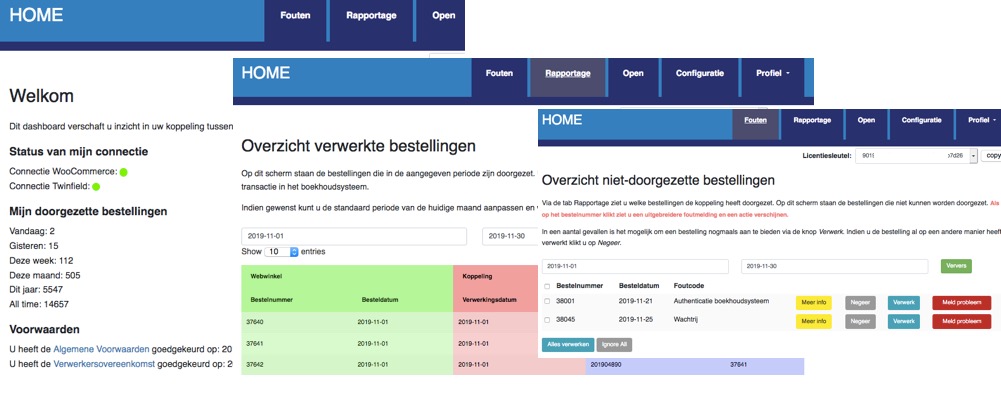
Explanation tabs dashboard
On the Dashboard >> Report you can see which orders or invoices from your Lightspeed eCom webshop, and when, have been transferred to Silvasoft.What if orders or invoices are missing in Silvasoft
If orders or invoices are missing in Silvasoft we recommend following the steps below:- Log in to the dashboard: https://uwkoppeling.webwinkelfacturen.nl. The username and password are included in the registration email.
- Go to the Errors tab and check if order or invoice is there. You may need to adjust the search period if the
order or invoice is from a previous month. If you find order or invoice in this overview:
- Check the error code and verify whether you can resolve it yourself.
- If yes resolve the issue and click the blue Process button to resubmit the order or invoice.
- If not use the red Report problem button to create a ticket with us.
- Note if there are multiple errors, please create only 1 or 2 tickets. We will automatically see the other issues.
- Go to the Report tab and see if order or invoice is listed there. If so, you'll often see an identifier for Silvasoft (in the purple section of the overview) that you can use to search for order or invoice.
- Go to the Open tab and check if order or invoice is there.
- If you cannot resolve the issue, you can always create a ticket via the green Ask us button.