1.Introduction
This is the manual for the integration between Mijnwebwinkel and Informer.
- This integration is a financial integration. It is not a logistics integration. It is not suitable for updating customers in Informer, printing packing slips, or synchronizing products/inventory.
- This integration does not replace the work of an accountant. It saves time because you no longer have to retype documents. The accountant is still needed for advice, expertise, and control.
Tip: Other customers using this integration found the tips in the FAQ for Mijnwebwinkel and in the FAQ for Informer.
Installing the integration starts with signing up for a trial period, via our integrations page. After registration, you will receive an email containing an installation URL and login details. With this installation URL, you start the installation of the integration.
The installation is complete when both connection dots are green, and the settings in the Configuration tab have been entered and saved.
There is a trial period of 30 days.
If you want to install another integration, you can do so in the same way. Make sure you are logged out of the integration dashboard and preferably start the new installation in an incognito browser.
At the end of the trial or subscription period, the integration will not be automatically renewed. You will receive an offer for a one-year subscription or renewal by email at the end of this period. You can confirm the renewal by using the payment link in that email. Do you want to terminate the integration in the meantime? This can be done via the dashboard, tab Profile>>Cancel integration.
Are you switching to another web shop/accounting system and do you want to re-establish a connection? In this faq we explain how to do this.
We advise you to revoke the API key of your Mijnwebwinkel shop when uninstalling the integration.
2.How the integration works
New orders from your webshop are retrieved at least once per hour. Additionally, every night previous orders that have not yet been forwarded to your accounting system are reviewed. If the status of an order has changed so that it may be processed to Informer, the integration will do so.
Read more How the integration works .... Read less How the integration works ....
At the start of processing an order, we perform a number of checks on the Mijnwebwinkel order:
- It is checked whether the total of the Mijnwebwinkel order is equal to the sum of the amounts in the order lines plus the shipping cost amount.
- If the order is an ICP order, the VAT number is checked.
- It is checked whether a corresponding VAT code exists in Informer for the VAT in each line.
- It is checked whether the order has not already been processed.
Processing a Mijnwebwinkel order to Informer takes place in two steps:
- It is checked if the customer already exists in Informer. If not, the customer is created. Matching is based on the email address.
- The Informer invoice is created and processed.
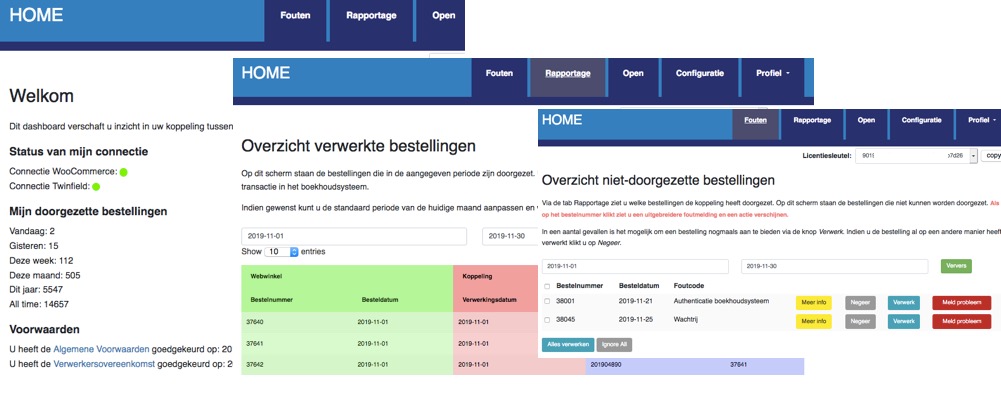
After the order has been forwarded and a success message from Informer has been received, the order is marked as handled. The Mijnwebwinkel order appears at the Reporting tab on the dashboard.
If Informer returns an error while processing the order, the order appears in the Errors tab on the dashboard. Via the yellow button More info more information about the problem can be found. Via the red button Report problem can the order with all necessary information easily be submitted to us after you have tried to resolve the problem yourself. If the problem is solved, in some cases the orders can be processed again with the blue Process button.
Data
Information about the data that is processed can be found in the section Day-to-day: To Informer later in the manual.
3.Required: Mijnwebwinkel key
You set up the connection with MijnWebWinkel using a key. You create this key in your webshop administration environment via Settings > API > Add Token. Please note: When selecting the partner in the dropdown menu, you must choose webwinkelfacten and not the name of your accounting software!

You can find the key itself under the API overview. If you click on Show token, the key will appear. Copy this into the login screen for the connection.

4.Required: Informer API key/code
Two pieces of information are required to integrate with Informer:
1. The security code. This is the security code you use to log in to Informer.
2. An API key. You create this in your Informer backend.

To create the API key, log in to Informer. Then go to Settings > General > API Keys. You will now see a list of existing API keys. This list is empty if no API key has been created previously. To create an API key, click the blue New button. After creating the API key, you will see it in the list.

5.Installation
After the installation, check using this FAQ, whether the integration works.
Installing the integration starts with signing up for a trial period, via our integrations page. After registering, you'll receive an email with an installation URL and login details. Use this installation URL to start the integration installation.
Activating the integration consists of three steps:
1. Establishing the connection with the Mijnwebwinkel webshop. Through this step, you authorize the integration to read the data from your webshop.
2. Establishing the connection with Informer. This authorizes the integration to write transactions to your Informer administration and read information.
3. Configuring additional data, such as the VAT settings.

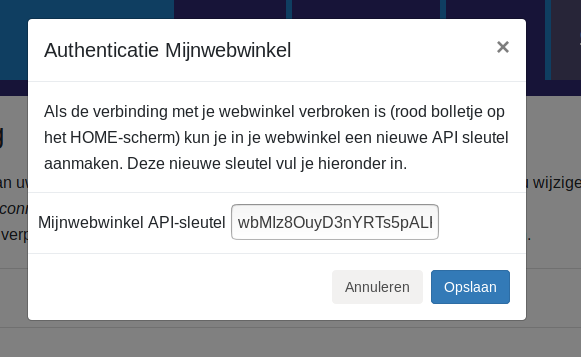
Authentication with your Mijnwebwinkel webshop is done via the API key you created in a previous section. Click the red Connect button next to Mijnwebwinkel and enter the API key in the popup window. If the connection is correctly established, the indicator will turn green. If the connection is not established, check whether the API key for the correct provider - being Webwinkelfacturen - was created in the previous section.
Informer connection
You establish the connection with Informer using the security code and API key you determined in the previous step. Click the red Connect button next to Informer. You can now enter the security code and the API key in the popup window.

For the Informer connection, you must specify an invoice layout, a payment condition for new debtors, and indicate how the currencies in Mijnwebwinkel should be processed in Informer. This can be done very easily via the blue Edit buttons and the selection boxes that then appear.

When configuring the VAT rates and general ledger accounts, a link is created between the VAT rates in webshop and the VAT codes and revenue accounts in Informer. You can always make changes by clicking the blue 'Edit' button and selecting an option from the drop-down menus.
By default, all EU countries are shown in the list. You only need to configure the countries you sell to, and - if applicable - ICP and International.
The integration shows the standard VAT rates for Europe. You can adjust the VAT percentage with which you sell - left column. For example: By default, sales to Germany are set to 21%, but if you sell in the webshop with 19%, you can adjust that in the left column. Intra-Community (ICP) and international deliveries
The Intra-Community supplies / ICP option is intended for business-to-business deliveries within the EU. These sales are invoiced with 0% VAT. A VAT number from the customer is required. The International option applies to deliveries outside the EU. For these sales, the integration expects 0% VAT; otherwise, the sales cannot be processed. Separate VAT codes and general ledger accounts can be configured for both ICP and international deliveries.
Once the VAT settings have been configured and saved, you will always see the selected VAT rates. If you want to start over, you can use the grey 'Remove VAT settings' button. Your current settings will then be deleted and you can begin again.

You can create a link here between the payment methods in the webshop and a fixed debtor in your Informer administration. Orders with a payment method from the list will then always be posted to this debtor. In that case, no new debtors will be created.
Note: It is not possible to set fixed debtors for ICP orders. For an ICP order, a valid VAT number must be transmitted. Therefore, a debtor will always be created in Informer for an ICP order.

6.Day-to-day: From Mijnwebwinkel
In this section, we show how we retrieve the orders from the webshop.
Once an order has been processed, it cannot be processed again. Any order changed in the webshop after it has been processed will not be updated in Informer.
Status processing:
For each order, the status of the order is reviewed. Orders with the status:
- Paid
- Shipped
- Paid and shipped
are processed to Informer.
It is possible to have orders processed to the accounting system for other statuses. You can easily set this in the Configuration tab of the dashboard.
Field-level specification orders
| Below is an elaboration at field level when retrieving orders. The general values in the order and the order rules are discussed, the shipping costs and the debtor details. | |
| Name field | Values from Mijnwebwinkel order |
| Order-identifier | [number] |
| Order number | [number] |
| Invoice number | [number] |
| Date | [date] |
| Order date | [date_created] |
| Status order | [status] |
| Payment status | With status 2, 3 and 5, the payment status becomes paid |
| Payment method | [payment][gateway_name] or [payment][0][gateway_name] |
| Order total incl. VAT and discounts | [total_price] |
| Total VAT order | [price][tax][amount] or - if [price][tax] consists of multiple lines, the sum of the [amount] fields of the [price][tax] lines |
| Order total incl VAT | [price][total] |
| Order total excl VAT | Order total incl VAT minus Total VAT order |
| Delivery country | The delivery country will be the [shipping][country] field if it is filled in. Otherwise, the [billing][country] field will be used. |
| ICP indication | The integration determines as follows whether it concerns an ICP order:
|
| International indication | The integration determines as follows whether it concerns an international order:
|
| To read the order lines, the integration takes the field [orderlines]. In Mijnwebwinkel, order lines have different types. These are indicated by the field [type]. For the order lines, this concerns type article or type custom. | ||
| Name field | Values from Mijnwebwinkel order line | |
| Productid | [articles][0][id] | |
| Amount | [quantity]. Please note, if the quantity is 0, the line is skipped. | |
| SKU | [articles][0][sku] if it is filled. If not, the product is retrieved from Mijnwebwinkel and the SKU is determined based on that. | |
| Description | [description] | |
| VAT percentage | [price][rate], if smaller than 1, the VAT percentage is multiplied by 100. | |
| Line amount excl VAT | Amount in the field [price][amount] | |
| Line amount incl VAT | Amount in the field [price][amount_including_tax] | |
| Unit amounts | Divide the line item amounts by the amount | |
| VAT code and accounts Informer | These are determined based on the settings, the VAT percentage and the delivery country. It also takes into account whether it is an ICP or international order. | |
| To read the order lines, the integration takes the field [orderlines]. In Mijnwebwinkel, order lines have different types. These are indicated by the field [type]. For the lines with shipping costs, this concerns type shipping. An order can have multiple shipping cost lines. Often with different VAT percentages. | ||
| Name field | Values from Mijnwebwinkel shipping costs-line | |
| Amount | 1 | |
| Description | [description] | |
| VAT percentage | [price][rate], if smaller than 1, the VAT percentage is multiplied by 100. | |
| Line amount excl VAT | Amount in the field [price][amount] | |
| Line amount incl VAT | Amount in field [price][amount] multiplied by the VAT percentage | |
| Unit amounts | Divide the line item amounts by the amount | |
| VAT code and accounts Informer | These are determined based on the settings, the VAT percentage and the delivery country. It also takes into account whether it is an ICP or international order. | |
| To read the order lines, the integration takes the field [orderlines]. In Mijnwebwinkel, order lines have different types. These are indicated by the field [type]. For the lines with payment costs, this concerns type payment. An order can have multiple payment cost lines. Often with different VAT percentages. | ||
| Name field | Values from Mijnwebwinkel payment cost line | |
| Amount | 1 | |
| Description | [description] | |
| VAT percentage | [price][rate], if smaller than 1, the VAT percentage is multiplied by 100. | |
| Line amount excl VAT | Amount in the field [price][amount] | |
| Line amount incl VAT | Amount in field [price][amount] multiplied by the VAT percentage | |
| Unit amounts | Divide the line item amounts by the amount | |
| VAT code and accounts Informer | These are determined based on the settings, the VAT percentage and the delivery country. It also takes into account whether it is an ICP or international order. | |
| To read the order lines, the integration takes the field [orderlines]. In Mijnwebwinkel, order lines have different types. These are indicated by the field [type]. For the lines with payment costs, this concerns type discount. An order can have multiple discount lines. Often with different VAT percentages. | ||
| Name field | Values from Mijnwebwinkel discountline | |
| Amount | 1 | |
| Description | [description] | |
| VAT percentage | [price][rate], if smaller than 1, the VAT percentage is multiplied by 100. | |
| Line amount excl VAT | Amount in the field [price][amount] | |
| Line amount incl VAT | Amount in field [price][amount] multiplied by the VAT percentage | |
| Unit amounts | Divide the line item amounts by the amount | |
| VAT code and accounts Informer | These are determined based on the settings, the VAT percentage and the delivery country. It also takes into account whether it is an ICP or international order. | |
| Name field | Values from Mijnwebwinkel customer |
| Customer |
Name fields
|
| The billing address is in field[address][invoice] and the shipping address in field [address][delivery]. The content of these fields is always the same, so we do not describe them separately. | |
| Address |
Address-fields
|
7.Day-to-day: To Informer
The orders from Mijnwebwinkel are imported into Informer as invoices.
When processing customer information, it is first checked whether the customer has been processed before. If so, this Informer debtor is used as the debtor for the Informer transaction. If the customer is not yet known, they are added to Informer. Matching is based on email address. Please note: The integration only creates debtors. The integration does not modify debtors.
The integration creates the invoice in Informer, but will not automatically send the invoice to the debtor. It is possible to set an invoice layout. This can be done via the dashboard https://uwkoppeling.webwinkelfacturen.nl, tab Configuration.
Field-level specification Informer

| Name | Example | Note |
| relation_id | 5366049 | customer-id |
| contact_name | Sophie Fischer | first and last name of customer |
| reference | 6224 | order number |
| invoice_date | 2022-12-06 | order date |
| payment_condition_id | 564437 | Payment condition - as configured on the dashboard. |
| currency_id | 63152 | valuta |
| vat_option | incl | Amounts are incl. VAT by default. |
| template_id | 442206 | As set on the dashboard. |
| comment | Remark order | |
| footer | empty by default | |
| lines | ||
| quantity | 1 | Amount |
| description | 18-month extension | description |
| amount | 200 | Unit price |
| discount | 0 | Discount is included in the unit price. |
| vat_id | 698451 | VAT code, As configured on the dashboard. |
| ledger_id | 5621485 | Ledger account, As configured on the dashboard. |
| product_id | 10023 | |
| costs_id | 0 | Cost center- empty. There is an option to set a default cost center for the integration. |
| Name | Example | Note |
| relation number | ||
| relation type | 1 | If a company name is provided, the relation type is set to 0. |
| Company name | [company] | |
| First name | [firstname] | If the first name is not provided, it is empty by default. |
| Last name | [lastname] | If the last name is not provided, it is empty by default. |
| Street | [Address1] [Address2] | If the address is not provided, it is empty by default. |
| House number | [housenr] | If the house number is not provided, it is empty by default. |
| Postal code | [zipcode] | |
| City | [city] | |
| Country | [isocountry] | |
| Phone number | [telnr] | |
| CoCnumber | [coc] | If the Chamber of Commerce number is not provided, it is empty by default. |
| VATnumber | [VATnr] | If the VAT number is not provided, it is empty by default. |
| Email invoice | [email] | |
| [email] |
8.Support
Read more Support .... Read less Support ....
Explanation tabs dashboard
On the Dashboard >> Report you can see which orders from your Mijnwebwinkel webshop, and when, have been transferred to Informer.What if orders are missing in Informer
If orders are missing in Informer we recommend following the steps below:- Log in to the dashboard: https://uwkoppeling.webwinkelfacturen.nl. The username and password are included in the registration email.
- Go to the Errors tab and check if order is there. You may need to adjust the search period if the
order is from a previous month. If you find order in this overview:
- Check the error code and verify whether you can resolve it yourself.
- If yes resolve the issue and click the blue Process button to resubmit the order.
- If not use the red Report problem button to create a ticket with us.
- Note if there are multiple errors, please create only 1 or 2 tickets. We will automatically see the other issues.
- Go to the Report tab and see if order is listed there. If so, you'll often see an identifier for Informer (in the purple section of the overview) that you can use to search for order.
- Go to the Open tab and check if order is there.
- If you cannot resolve the issue, you can always create a ticket via the green Ask us button.